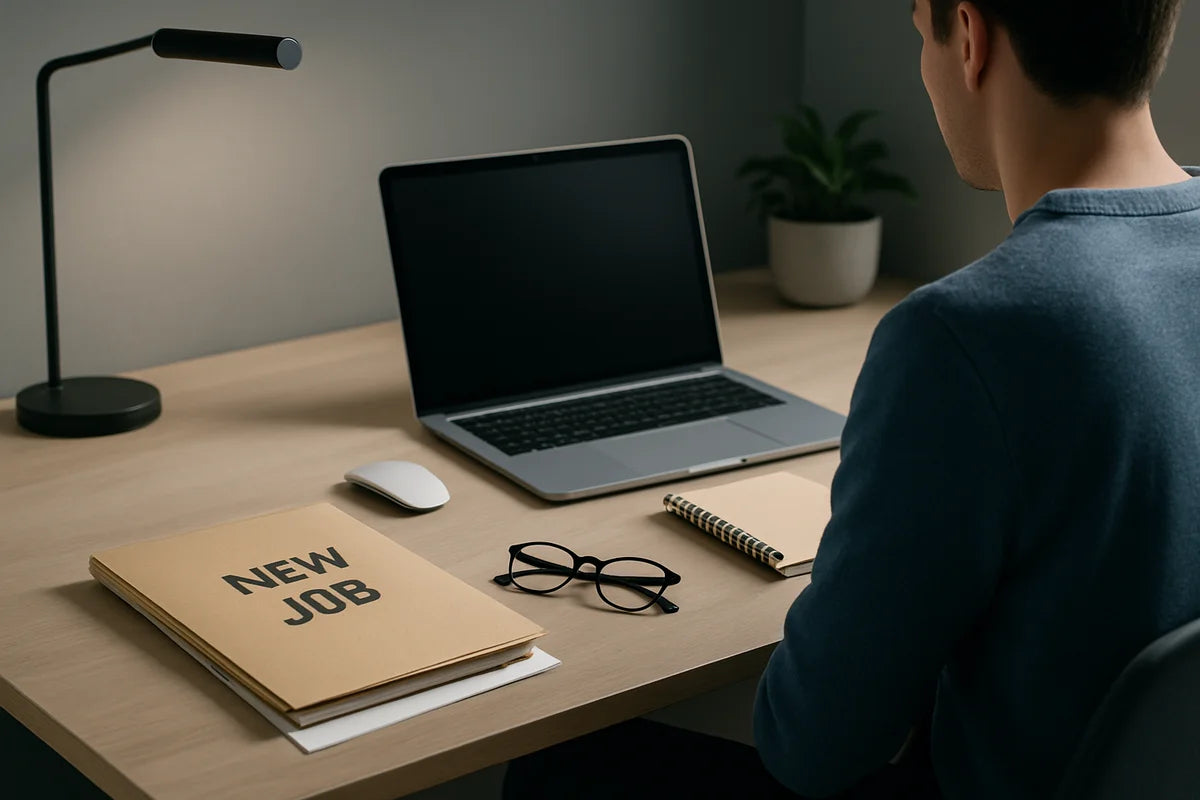
Starting a new job comes with a flood of small decisions. What do you wear? How do you learn the tools? Who do you ask for help? One decision sits under all the others: where you do the work.
Preparing for a new job with effective workspace setup isn’t about buying fancy gear. It’s about removing friction. When your desk, chair, screen, light, and apps all work together, you spend less time fixing problems and more time learning your role.
This article walks you through a practical setup you can do in a weekend, whether you work from home full-time, go to an office, or split your week.
Start with the job itself, not the furniture

Before you move a chair, get clear on what the job asks you to do. Different work needs different setups.
Ask these five questions
- Will you spend most of your day writing, in meetings, designing, coding, or on calls?
- Do you need a quiet space for deep work, or can you work with some noise?
- Do you handle private data that needs a lockable space or screen privacy?
- Do you need extra hardware (second monitor, webcam, headset, drawing tablet)?
- Do you work set hours, or do you need a setup you can “close” when you’re done?
If you’re remote, ask your manager what the company provides and what you can expense. If you’re in-office, ask if you can choose your seat, bring your own keyboard, or request an ergonomic review.
Choose the right spot and protect it

Your best workspace might not be a separate room. It might be a corner that stays consistent. The goal is simple: make it easy to start work and hard to drift into distractions.
Pick a location using three signals
- Noise: Can you control it with a door, a curtain, or a headset?
- Light: Can you get decent daylight without glare on your screen?
- Traffic: Do people walk through the space often?
If your home is busy, build a “do not disturb” cue. A sign on the door. Headphones on. A desk lamp that means “I’m on a call.” Small signals prevent awkward interruptions.
Set boundaries that don’t need willpower
- Keep your work tools in one place. Don’t spread chargers, notebooks, and cables across the house.
- If you can, don’t work from bed. Sleep and stress don’t mix well.
- Create an end-of-day ritual: shut the laptop, clear the desk, and leave the space.
Get the ergonomics right before aches show up
Most people wait until their neck hurts to adjust their setup. Flip that. Do a basic ergonomic pass on day zero.
For detailed guidance, the CDC’s NIOSH ergonomics resources are a solid, plain-English reference.
Chair and posture basics that work for most bodies
- Feet flat on the floor (or on a footrest if your chair sits high).
- Knees about level with hips, not pulled up under you.
- Back supported. If your chair lacks support, add a small cushion or rolled towel at your lower back.
- Shoulders relaxed. If you feel them creeping up, your desk is often too high.
Screen and keyboard placement
- Put the top of your screen around eye level. If you use a laptop, a stand plus an external keyboard helps.
- Keep the screen about an arm’s length away as a starting point.
- Keep your keyboard and mouse close enough that your elbows stay near your sides.
For a deeper setup checklist, OSHA’s ergonomics guidance covers common workstation risks and fixes without hype.
Don’t ignore your eyes
Eye strain sneaks up fast in a new job because you’re learning new systems and staring harder than usual. The American Academy of Ophthalmology’s tips for computer use includes the simple habits that reduce dryness and fatigue.
- Lower screen brightness if it’s brighter than your room.
- Push glare off the screen by shifting the monitor angle or moving a lamp.
- Take short visual breaks during long reading tasks.
Build a layout that matches how you work
A good workspace setup makes the right action the easy action. That means your most used items sit within reach, and everything else has a home.
Use three zones on your desk
- Main zone: keyboard, mouse, notebook, and the one screen you use the most.
- Support zone: phone stand, reference notes, a second screen, or a tablet.
- Off-desk zone: chargers, spare cables, printer supplies, and anything you don’t use daily.
Keep cables boring
Cable mess creates tiny failures: unplugged headsets, loose power, and frantic searches during calls. Fix it once.
- Mount a power strip under the desk or attach it to a leg so it doesn’t slide.
- Label the ends of key cables (monitor, laptop charger, headset).
- Use one charging station for phone, earbuds, and smartwatch.
Set up sound and video so meetings don’t drain you
In a new job, people form quick impressions from calls. You don’t need studio gear. You need clarity and consistency.
Audio first, always
- Use a headset or a simple USB mic if your laptop mic sounds thin.
- Test your audio in the exact app you’ll use for work calls.
- Reduce echo with soft surfaces: a rug, curtains, or a fabric chair.
Make your camera look normal
- Put the camera at eye level. Stacking books under a laptop works fine.
- Face a light source when you can. Avoid a bright window behind you.
- Keep the background calm. A blank wall beats visual clutter.
If you want a practical checklist for remote meeting setup and habits, Nielsen Norman Group’s research on remote meetings is a helpful, no-nonsense read.
Lock down security and privacy from day one
New hires often get rushed through security steps. Don’t. A clean setup protects you and your employer, and it prevents avoidable drama.
Secure the space
- Use a screen lock with a short timeout.
- Don’t take calls where others can hear private details.
- If you handle sensitive work, consider a basic privacy screen or choose a seat that faces a wall.
Secure the devices
- Run system updates before your first day so you don’t lose an hour to forced restarts.
- Turn on full-disk encryption if your company allows it and you manage your own device.
- Use a password manager so you don’t reuse passwords across tools.
If you want a simple, credible baseline, the FTC’s advice on spotting phishing scams helps you avoid the most common “new employee” trap: fake login links and fake IT messages.
Set up your digital workspace like a pro
Preparing for a new job with effective workspace setup includes your screen setup, files, and notifications. Digital clutter causes the same stress as physical clutter. Sometimes more.
Do a clean account and browser setup
- Create a separate browser profile for work so bookmarks, extensions, and logins don’t mix with personal life.
- Turn off noisy notifications. Keep only what you truly need for your role.
- Set “focus” or “do not disturb” modes for deep work blocks and meetings.
Use a simple folder structure
- 01 Admin (HR, benefits, policies)
- 02 Team (org charts, key docs, meeting notes)
- 03 Projects (one folder per project)
- 04 Reference (how-tos, links, templates)
Name files so you can find them later. Dates help. So do clear labels. For example: “2026-02 Weekly 1-1 Notes” beats “notes_final_v2.”
Make a “first week” dashboard
Keep one simple place that holds what you’ll need daily during onboarding.
- Links to email, calendar, chat, HR portal, and your task list
- Your onboarding schedule
- A running list of questions to ask in your next check-in
- A “who’s who” list with names, roles, and what they own
Stock your workspace with a few high-return items
You can spend a lot or a little here. The better approach is to buy only what fixes a real problem.
Basics that usually pay off
- An external keyboard and mouse if you work on a laptop most of the day
- A laptop stand or a monitor riser
- A decent headset if you take frequent calls
- A desk lamp with a warm bulb if your room light is harsh
- A simple footrest if your chair height forces your feet to dangle
Nice-to-haves if your job needs them
- A second monitor for spreadsheets, design tools, or coding
- A small whiteboard for priorities and reminders
- A webcam if your laptop camera struggles in low light
If you want a reality check on what office work does to your body and why movement matters, Mayo Clinic’s overview of the risks of too much sitting is a useful reference.
Add movement to the setup so you don’t crash midweek
A great chair won’t save you from eight hours of stillness. Build movement into the way you work, not as a “fitness plan” you’ll forget when work gets busy.
Use micro-breaks that don’t break your flow
- Stand up during a low-stakes call.
- Do a quick shoulder roll when you finish a task.
- Refill your water and take the long way back.
Set two anchors in your calendar
- A short walk before work starts to mark the beginning of the day
- A short reset after work to separate job time from home time
These anchors matter even more if you work from home. They stop the day from turning into one long blur.
Run a “day one” test drive
Don’t wait for your first real meeting to find out your Wi-Fi drops or your chair height is wrong. Do a full practice run.
- Sit at your desk for 30 minutes and do a realistic task: write, read, or build something.
- Join a test call and record 10 seconds of audio. Listen for hiss, echo, or low volume.
- Check camera framing and lighting at the time of day you’ll often meet.
- Open every core tool you’ll use and log in once so you can fix access issues early.
- Set up a water spot and a quick snack option so you don’t skip breaks.
Looking ahead with a workspace that can grow with you
Your first workspace setup won’t be perfect, and it doesn’t need to be. The smart move is to treat the first month as a short experiment. Each week, pick one friction point and fix it. Maybe your wrists hurt, so you adjust keyboard height. Maybe meetings feel stressful, so you improve audio. Maybe you lose files, so you tighten naming and folders.
If you keep making small changes, your workspace will match your role as it evolves. That’s the real win of preparing for a new job with effective workspace setup: you start calm, you stay focused, and you give yourself room to do better work faster.