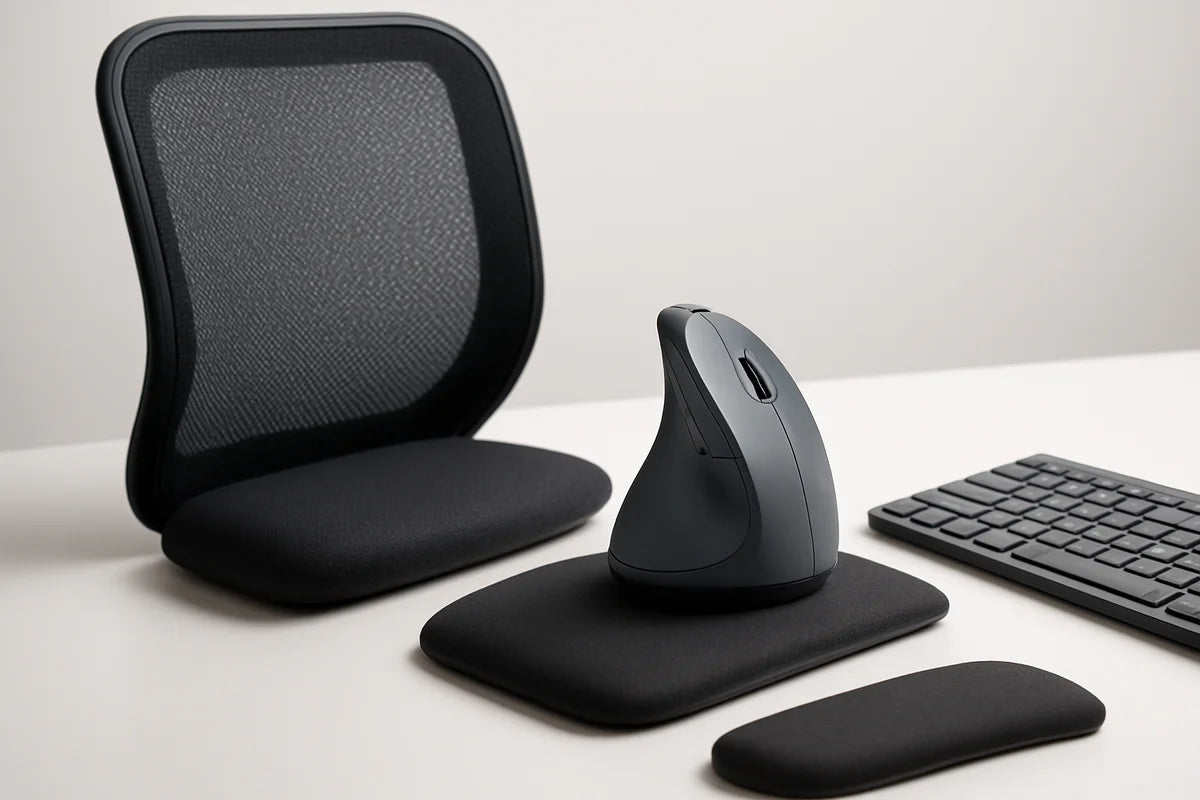
If your home office leaves you stiff, sore, or tired by mid-afternoon, your chair or desk might not be the only problem. Small setup gaps add up: a monitor that sits too low, a keyboard that bends your wrists, a chair that doesn’t support your lower back.
The good news is you don’t need a full remodel to feel better. The best ergonomic accessories for a home office fix the most common stress points: neck angle, shoulder shrug, wrist bend, and poor circulation. This guide breaks down what to buy, why it helps, and how to set it up in a way that fits real life (small rooms, mixed use spaces, and budgets).
What “ergonomic” really means (and why accessories matter)

Ergonomics is simple: set up your tools so your body doesn’t fight them. You want neutral joints, steady support, and easy reach. When your screen sits at the wrong height or your mouse forces your wrist to twist, you’ll compensate without noticing. Over time, those tiny changes can feed pain.
For a solid baseline, OSHA’s computer workstation guidance is a helpful reference for screen height, posture, and reach zones. See OSHA’s computer workstation eTool.
Start with the big three: chair support, screen height, and input devices
Most people chase the perfect chair and stop there. A good chair helps, but your screen, keyboard, and mouse decide what your neck, shoulders, and wrists do all day. Fix those first and you’ll feel the change fast.
1) Lumbar support cushion (or a better backrest)
If your chair doesn’t support your lower back, you’ll slump. Slumping rolls your pelvis back and pushes your head forward. That’s a straight line to neck strain.
- Choose a firm (not squishy) lumbar cushion that holds its shape.
- Place it at the small of your back, not mid-back.
- If your chair has built-in lumbar, adjust it so you feel gentle pressure, not a hard shove.
Tip: If your chair seat is deep and the cushion pushes you forward too much, add a small footrest (covered below) so your feet still plant well.
2) Monitor riser or monitor arm
A low screen makes you tilt your head down. A far screen makes you crane forward. A monitor accessory fixes both.
- Use a monitor riser if you want cheap and stable.
- Use a monitor arm if you change positions often, share a desk, or need more desk space.
Quick setup check:
- Bring the screen to about an arm’s length away.
- Set the top of the screen around eye level (slightly below is fine if you wear progressives).
- Tilt the screen so you don’t bend your neck to read.
For more detail on screen position and workstation fit, Cornell’s ergonomics resources are practical and easy to apply. See Cornell University’s ergonomics guidance.
3) External keyboard and mouse (especially for laptops)
Typing on a laptop locks your hands low while the screen sits low too. You can’t fix both at once without accessories. The clean solution: lift the laptop and use an external keyboard and mouse.
- Pick a keyboard that lets your wrists stay straight (a low-profile model often helps).
- Pick a mouse that fits your hand size so you don’t pinch your grip.
- Keep both close enough that your elbows stay near your sides.
If you deal with wrist pain, shoulder tightness, or numb fingers, a more vertical mouse can reduce forearm twist. For a clear overview of mouse and keyboard fit, see CCOHS guidance on keyboard and mouse ergonomics.
The best ergonomic accessories for home office comfort (and how to choose them)
Once you’ve covered the basics, these add-ons target the pain points most people feel after long desk time. You don’t need all of them. Pick based on your body and your work.
4) Laptop stand (or stack) that gets the screen up
If you work on a laptop, this is often the highest value purchase. A stand lifts the screen so your neck stays tall. Pair it with an external keyboard and mouse.
- Adjustable stand: best if you change chairs, move rooms, or share a desk.
- Fixed stand: fine if your setup never moves.
- DIY option: a stable stack of books works, as long as it doesn’t wobble.
Rule of thumb: if you can’t keep your head level while you read, your laptop sits too low.
5) Footrest (for shorter users or high chairs)
Dangling feet cut circulation and make you slide forward in the chair. A footrest gives you a solid base so your hips and lower back stay supported.
- Look for a height range that lets your knees sit around a right angle.
- Choose a slight tilt option if your ankles get stiff.
- A firm foam block can work if you want simple and quiet.
Quick check: if you can’t keep both feet flat without scooting forward, you’ll likely benefit from a footrest.
6) Seat cushion (for pressure relief and better hip position)
A seat cushion can help if your chair feels too hard, too flat, or too high in the front. It can also reduce pressure on your tailbone.
- Choose medium-firm foam that doesn’t bottom out.
- Look for a slight wedge shape if you tend to slump (higher in back, lower in front).
- Avoid overly thick cushions if your desk is already high, since they can raise you too much.
If you add a cushion and your shoulders creep up while typing, lower the chair or raise the keyboard surface.
7) Wrist rest (only if you use it the right way)
Wrist rests cause confusion. They can help, but they can also create pressure on sensitive areas if you plant your wrists on them while typing.
- Use a wrist rest as a pause pad, not a typing crutch.
- Pick one that stays low and supports the heel of the hand.
- If it forces your wrists to bend up, skip it.
Better habit: float your hands while typing and rest during breaks.
8) Document holder (for heavy reading and data entry)
If you look down at papers all day, your neck works overtime. A document holder keeps the page closer to screen height, so your eyes move more than your neck.
- Place it close to the monitor to cut head turns.
- Match the document height to the part of the screen you reference most.
- For small desks, try an in-line holder that sits between keyboard and monitor.
9) Task lighting that cuts eye strain
Eye strain often shows up as headaches, squinting, and forward head posture. A good lamp doesn’t just help you see. It helps you sit back.
- Use a dimmable lamp so you can match the room light to the screen.
- Aim light at your work surface, not into your eyes.
- Reduce glare by keeping bright lamps out of your direct line of sight.
Lighting and screen habits matter too. For practical tips on eye comfort, see eye health guidance from the National Eye Institute.
10) Headset or mic for calls (so you stop “phone shoulder”)
Long calls can wreck your neck if you clamp a phone between your ear and shoulder. A simple headset prevents that. If you talk a lot for work, this may be one of the best ergonomic accessories for a home office, even though it doesn’t look “ergonomic.”
- Choose a comfortable headband and ear pads if you wear it for hours.
- Pick a boom mic if you take frequent calls in a noisy home.
- Use a stand or mount so you don’t twist to reach it.
11) Anti-fatigue mat (for standing desk users)
If you stand for chunks of the day, your feet and calves take the hit. An anti-fatigue mat gives a bit of give, which can help you stand longer with less soreness.
- Look for a beveled edge to reduce trips.
- Pick a mat that doesn’t squish flat after a few weeks.
- Use shoes or supportive slippers if your floors are hard.
Standing doesn’t replace sitting. It complements it. Switch often.
12) Desk organizer that protects your reach zone
Ergonomics isn’t only posture. It’s also how often you reach, twist, or hunt for items. A small organizer can reduce awkward moves that add up.
- Keep your daily items in a close “primary zone” (keyboard, mouse, phone, notebook).
- Store less-used gear farther out so it doesn’t crowd your work area.
- Use a vertical stand for notebooks or tablets if desk space is tight.
How to set up your desk in 10 minutes
You can buy the best ergonomic accessories for home office work, but setup makes or breaks them. Use this fast order of operations.
- Set chair height so your feet rest flat (or add a footrest if needed).
- Sit back and set lumbar support so it fills the curve of your lower back.
- Set keyboard and mouse height so your elbows stay near your sides and your wrists stay straight.
- Raise the screen so you don’t tilt your head down.
- Bring the screen closer if you lean forward to read.
- Place your mouse close enough that you don’t reach or shrug.
- Set lighting to reduce glare and squinting.
- Do a 30-second test: type, scroll, and read. Fix the one thing that feels “off.”
If you want a quick workstation checklist you can run through now and then, UC Berkeley has a clear, no-nonsense set of tips. See UC Berkeley ergonomics guidance.
Common buying mistakes (and how to avoid them)
Buying a chair before fixing screen height
A premium chair won’t stop you from hunching over a low laptop. Start with screen height and input devices, then upgrade the chair if you still need it.
Choosing accessories that lock you into one posture
The “perfect posture” idea doesn’t help. Your body wants movement. Pick gear that makes it easy to shift: an adjustable monitor arm, a keyboard tray with range, a footrest with height options.
Going too soft
Super soft cushions feel nice for a week, then collapse. Choose supportive materials that keep shape and hold you in a stable position.
Ignoring fit
Hand size matters for mice. Desk height matters for keyboard comfort. If possible, buy from a seller with a fair return policy so you can test for a few days.
Where to start if you’re on a budget
If you only buy three items, make them these:
- Laptop stand (or a stable riser) plus an external keyboard and mouse
- Basic lumbar support cushion if your chair lacks support
- Task lamp if you strain to see or work in a dim room
If you’re not sure which change will help most, start with a simple self-check. Do you lean forward to read? Raise and move the screen closer. Do your shoulders creep up when typing? Lower the keyboard surface or raise the chair and add a footrest. Do you feel wrist pressure? Re-check mouse fit and keep wrists straight.
Looking ahead: build a setup that adapts with you
Your “best” setup will change. Workloads shift, bodies change, and even seasons affect comfort. Treat your home office like a tool you tune, not a project you finish.
This week, pick one friction point you feel every day and fix it with a targeted accessory. Next week, adjust your layout so your most-used items sit closer. Then add a small habit: stand for two minutes each hour, or take calls with a headset while you walk. Those small choices compound, and they make the best ergonomic accessories for home office work pay off for years, not days.