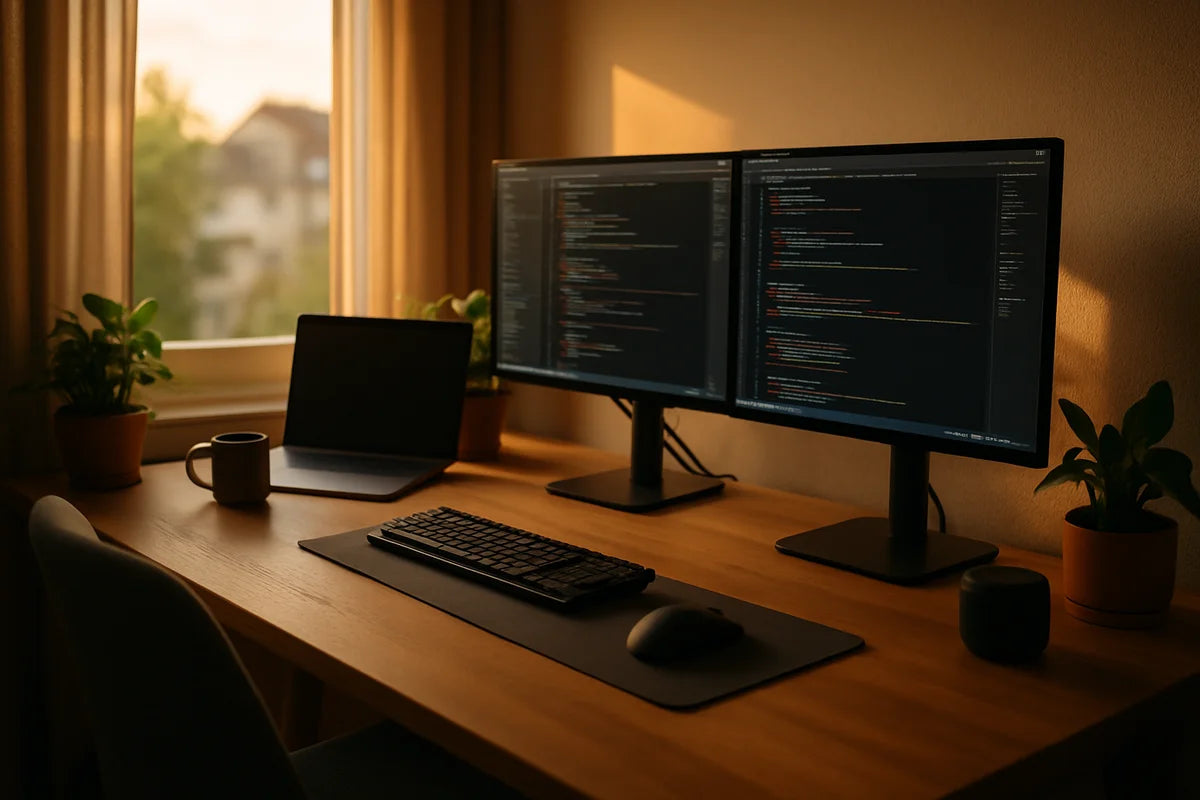
Your workspace shapes how you feel and how you think. If you’ve ever tried to debug a gnarly bug while your neck hurts and your desk is a mess, you already know the problem. An optimal workspace setup for software developers isn’t about showing off gear. It’s about comfort, focus, and a setup that makes good work easier.
This article breaks the job into clear parts: desk and chair, screens and input devices, light and sound, air and temperature, and the habits that keep it all working. You don’t need to buy everything at once. Start with the changes that fix pain and friction first.
Start with the goal: less strain, fewer distractions, smoother flow

A good setup does three things:
- Reduces physical strain so you can work longer without aches
- Cuts distractions so your brain stays on the problem
- Makes common tasks fast (charging, notes, calls, switching devices)
If you’re building an optimal workspace setup for software developers, measure success by how you feel at 4 pm, not how it looks at 9 am.
Desk and chair: the base that decides your posture
Pick a desk height that fits your body (not the other way around)
Your desk should let your forearms rest close to level when you type. If you shrug your shoulders up to reach the keyboard, your desk is too high. If your wrists bend up, it’s too low.
- If your chair is adjustable, set chair height first so your feet rest flat (or use a footrest).
- Then set desk height so your elbows sit around 90 degrees and your shoulders relax.
- Keep wrists neutral. Don’t plant them hard on the desk edge.
If you want a quick ergonomic refresher, the OSHA ergonomics guidance covers the basics in plain language.
Don’t overthink the chair, but don’t ignore it
Chairs don’t write code, but bad chairs can ruin your day. Look for:
- Seat height adjustment
- Back support that matches your lower back
- Armrests that don’t force your shoulders up
- A seat pan that doesn’t press behind your knees
If you can’t replace your chair, you can still fix a lot with a small lumbar cushion, a footrest, and better screen height.
Sitting vs standing: use both, but keep it simple
Standing desks can help, but they don’t cancel out long hours. The win comes from switching positions. A practical approach:
- Start with 15-20 minutes standing per hour.
- Use a timer for the first week. Don’t rely on willpower.
- Wear shoes or use a mat if your feet ache.
Standing all day can cause its own issues. Treat standing as a tool, not a badge of honor.
Monitor setup: see more, squint less
Monitor height and distance: the cheap fix with big impact
Place the top of your screen around eye level. If you use a laptop as your main screen, a stand plus an external keyboard and mouse often gives the biggest comfort jump for the least money.
- Distance: about an arm’s length is a solid start.
- Height: top of screen near eye level, so your neck stays neutral.
- Angle: tilt slightly back to reduce glare.
Need a more detailed reference? Cornell’s ergonomic tips are clear and practical, especially for computer work. See Cornell University’s ergonomics resources.
One big monitor vs two monitors vs ultrawide
Which one helps most depends on your work style.
- One monitor: simplest, cheapest, fewer distractions. Great if you use virtual desktops well.
- Two monitors: ideal if you often keep docs open while coding, or you debug with logs side by side.
- Ultrawide: nice for timeline work, large diff views, and wide IDE layouts, but costs more.
If you go dual monitors, align them so you don’t twist your neck all day. Put your main screen straight ahead, not off to the side.
Tune text size and contrast (it matters more than resolution)
People chase sharp screens, then work with tiny fonts. Increase your editor font size until you can read without leaning in. Check these too:
- System scaling so UI elements aren’t cramped
- Theme contrast so you can scan code fast
- Anti-glare placement to avoid bright windows behind you
Keyboard, mouse, and input: comfort is speed
Keyboard choice: pick what your hands like
Mechanical vs membrane is less important than comfort and layout. If you type all day, pay attention to:
- Key travel and force (too heavy can tire your hands)
- Layout (full size, TKL, 75 percent) based on how often you use the numpad
- Split or angled boards if you get wrist or shoulder pain
Try before you buy if you can. If not, buy from a place with easy returns. Your hands will tell you fast.
Mouse and pointing devices: reduce wrist twist
If your wrist aches, your mouse may be too small, too flat, or too far away. Fix the basics first:
- Keep the mouse close to the keyboard so your elbow doesn’t flare out
- Raise your chair or lower your armrests so your forearm stays level
- Consider a vertical mouse or trackball if you feel strain from wrist rotation
This is one place where “optimal workspace setup for software developers” can be very personal. The right device is the one you can use for hours without pain.
Wrist rests: use with care
A wrist rest should support your palm when you pause, not hold your wrists up while you type. If you press into it while typing, you can irritate tendons. Keep wrists floating and neutral when you type.
Lighting: stop fighting glare and headaches
Use soft, indirect light whenever possible
Harsh overhead lighting plus a bright screen can wear you down. Aim for a balanced setup:
- A desk lamp that bounces light off a wall or uses a diffuser
- Screen positioned sideways to windows (not facing, not back to them)
- Blinds or curtains to control glare during peak sun
If you work late, warmer light can feel easier on the eyes than bright white bulbs.
Bias lighting behind the monitor helps
A simple LED strip behind your display can reduce the contrast between the bright screen and a dark room. It’s not magic, but many people find it cuts eye fatigue during long sessions.
Noise and focus: make deep work easier to enter
Pick your sound strategy: block it, mask it, or shape it
Noise kills focus, especially for problem solving. Options:
- Block: closed-back headphones or noise-canceling headphones
- Mask: steady background sound (fan, white noise, low music without lyrics)
- Shape: rugs, curtains, and soft surfaces that reduce echo
If you live with others, a simple “do not disturb” sign or a shared schedule often beats any gadget.
Use cues that tell your brain it’s coding time
Habits matter as much as hardware. A repeatable cue helps you start faster. Examples:
- Same playlist only for coding
- Same desk lamp on when you work
- A short checklist: water, notes open, tasks picked, phone away
Air, temperature, and comfort: the hidden productivity drivers
Fresh air and clean air reduce that “stale room” slump
If you work in a small room, air quality can drop faster than you think. Open a window when you can. If you can’t, a basic air purifier may help, especially if you deal with dust or smoke.
For a solid overview of indoor air quality basics and what affects it, the EPA indoor air quality guidance is a reliable place to start.
Temperature: aim for “not noticeable”
When you’re too hot or too cold, you lose attention. Keep a layer nearby, and if your hands get cold, consider:
- Fingerless gloves
- A small desk heater with safety shutoff
- Warmer room lighting at night
Small discomforts stack up during long debugging sessions.
Desk layout: reduce friction and keep the mess contained
Set up zones: screen zone, writing zone, and “stuff” zone
A clean desk doesn’t need to be empty. It needs to be clear where things go.
- Screen zone: monitors centered, keyboard and mouse aligned
- Writing zone: a notebook or tablet for quick notes and diagrams
- Stuff zone: chargers, dongles, and odds and ends in a tray or small drawer
If you use a lot of small adapters, label them. You’ll save time and avoid buying duplicates.
Cable management: do the minimum that stops daily annoyance
You don’t need showroom cable routing. Do enough so cords don’t snag and your desk stays easy to wipe down.
- Use adhesive clips for charging cables you grab often
- Mount a power strip under the desk
- Bundle slack with Velcro ties (skip zip ties unless it never changes)
If you want a simple starting point, the Wirecutter cable management tips give practical ideas without getting precious about it.
Tools and settings that make work smoother
Docking and charging: make plugging in effortless
If you use a laptop, a single-cable dock can turn “set up to work” into a one-step action. Look for:
- Power delivery that can charge your laptop
- Enough USB ports for keyboard, mouse, and headset
- Stable video output for your monitor setup
Even without a dock, you can get most of the benefit by keeping a dedicated charger and cable at your desk.
Keep your eyes and hands happy with small software tweaks
- Enable a blue light reduction mode at night if it feels better for you
- Set up OS-level shortcuts for window snapping and switching
- Use a password manager so login friction doesn’t break focus
If you type a lot, a keyboard shortcut trainer can pay off. Many developers like to build muscle memory with tools such as ShortcutFoo.
Breaks and movement: the part most people skip
Use short breaks to protect your neck, back, and wrists
Even an optimal workspace setup for software developers won’t fix what eight still hours can break. You need movement.
- Every 30-60 minutes: stand up, roll shoulders, and reset posture
- Once or twice a day: a short walk or a few minutes of light stretching
- After intense focus: rest your eyes by looking at something far away
The Mayo Clinic has a clear overview of office ergonomics and body positioning if you want a quick checklist from a medical source: Mayo Clinic’s office ergonomics advice.
Try a simple “reset routine” between tasks
When you finish a ticket or stop a coding session, take 60 seconds:
- Close or file stray tabs.
- Write the next step in one sentence.
- Put your notebook and headset back in their spots.
This keeps tomorrow-you from wasting the first 20 minutes just getting oriented.
Two sample setups (one budget, one upgraded)
Budget-friendly setup that still feels good
- Laptop stand or a stack of sturdy books to raise the screen
- External keyboard and mouse
- Basic desk lamp with warm bulb
- Footrest (or a firm box) if your feet don’t sit flat
- One cable tray or a few clips to stop cord sprawl
Upgraded setup for long daily sessions
- Adjustable chair with decent lower back support
- One large monitor or dual monitors on an arm
- Docking station for one-cable connect
- Noise-canceling headphones if your space is loud
- LED bias lighting behind the monitor
Notice what’s missing: you don’t need a designer desk, neon lights, or a drawer full of gadgets. Comfort and low friction do the heavy lifting.
Conclusion: build the setup that makes good work feel easier
The best workspace isn’t the one you see online. It’s the one that keeps you comfortable, clear-headed, and able to focus. Start with posture: chair, desk height, and monitor position. Then fix the pain points that interrupt your day: glare, noise, cable mess, and poor airflow.
If you change one thing this week, raise your screen and bring your keyboard and mouse into a comfortable position. That single step often gets you most of the benefit of an optimal workspace setup for software developers, with none of the hype.